

Capture & Organize Code
Directly from Any Webpage
Highlight code anywhere on GitHub, StackOverflow, or documentation, right-click, and sync it directly to your SnippKit cloud library seamlessly.





How It Works in 6 Simple Steps
See the exact workflow from highlighting a snippet on a tutorial site to configuring shortcuts and managing it inside your workspace.
Capture Code Directly from Any Webpage
When researching on StackOverflow, MDN, GitHub, or documentation sites, simply highlight any snippet or script. Right-click to trigger the SnippKit context menu and choose your target format instantly:
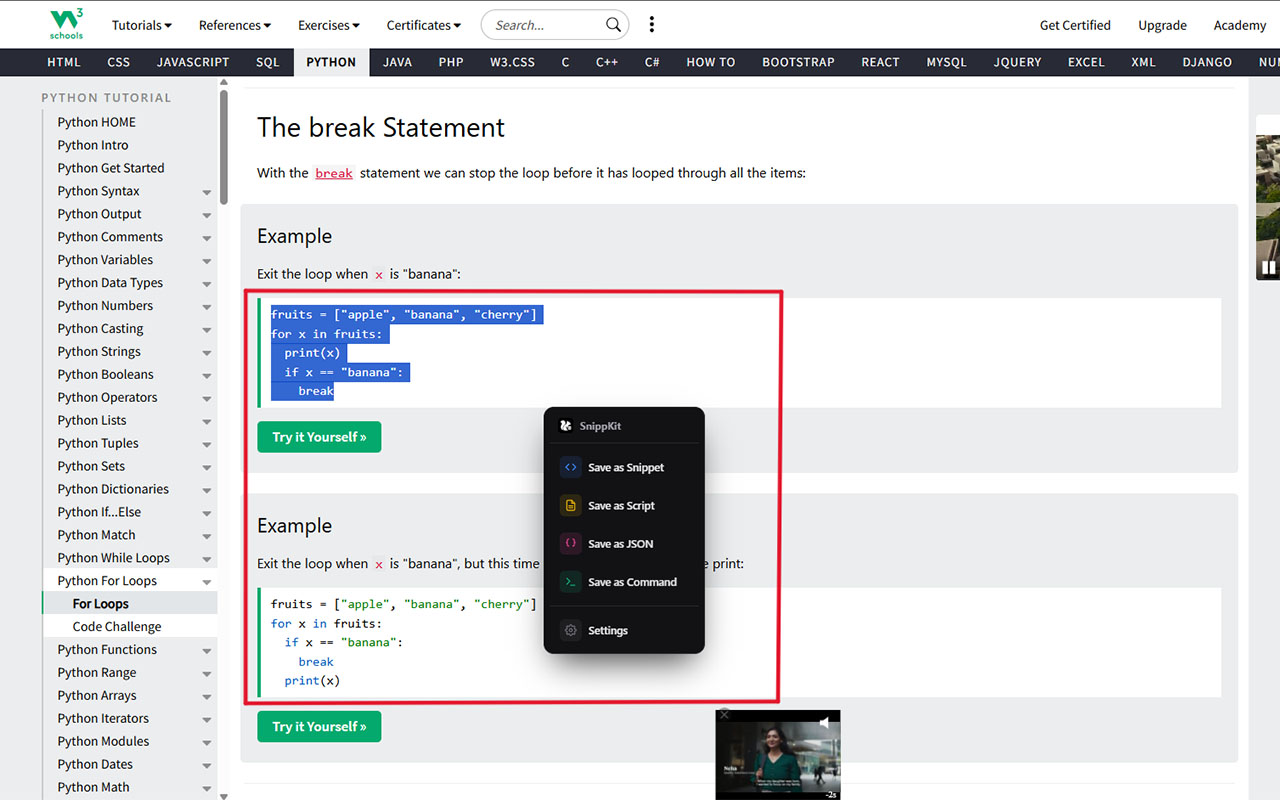
Instant Syntax Detection & Privacy Controls
Configure your snippet in seconds without context switching. The extension automatically calculates line counts, detects language syntax, and gives you total control over privacy and vanity URLs.
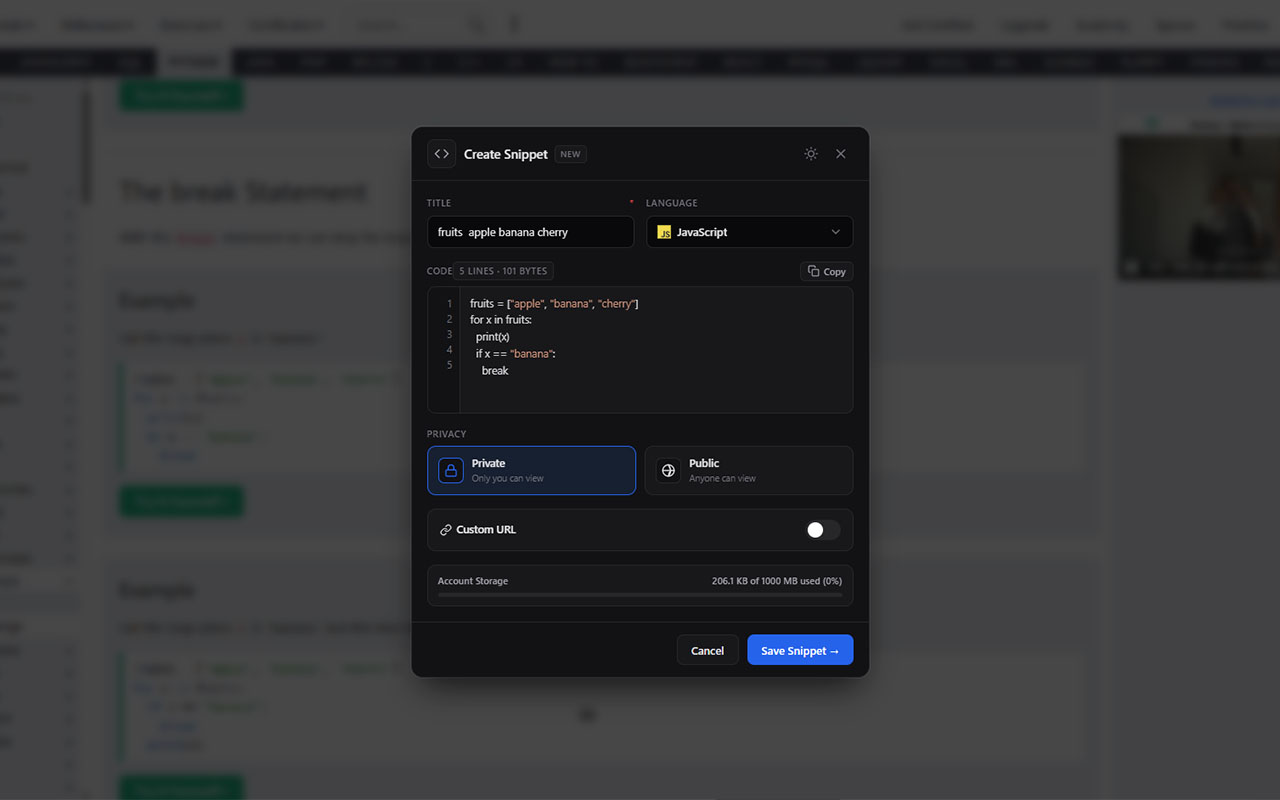
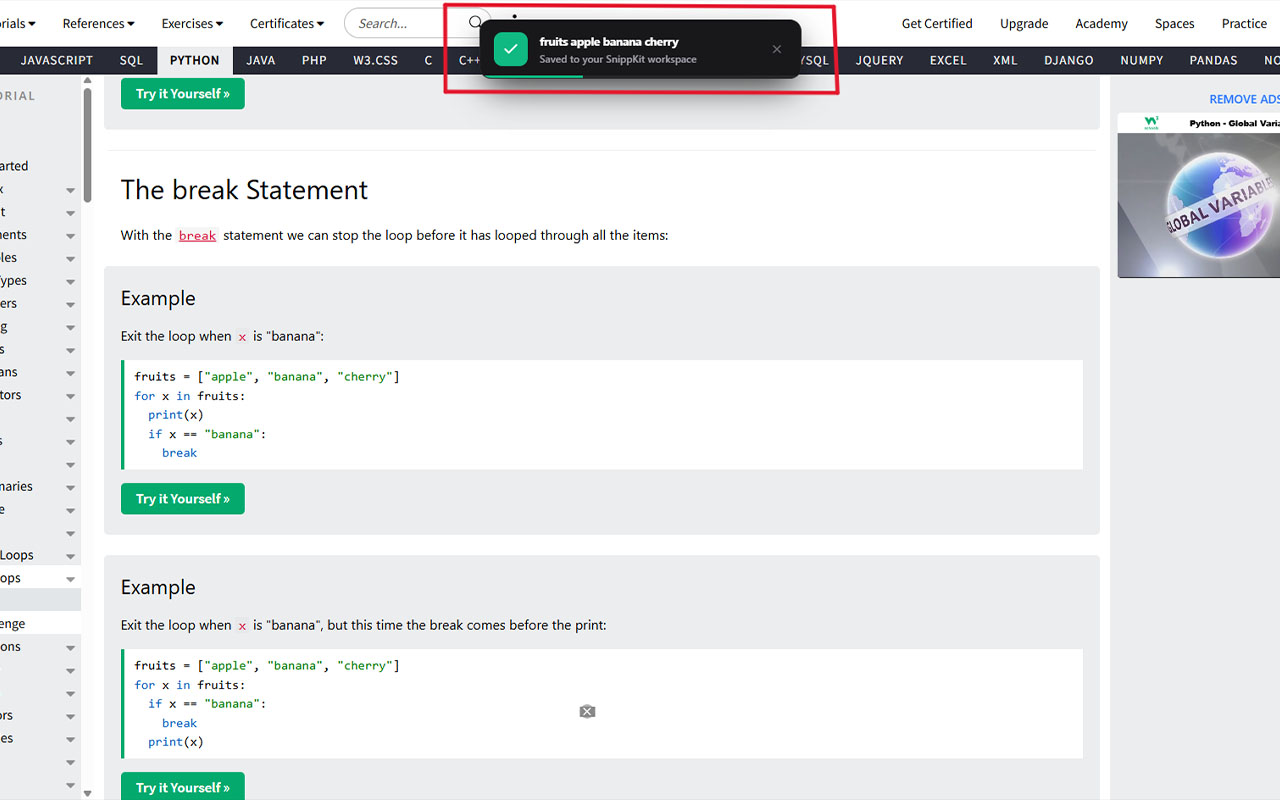
Non-Intrusive Floating Confirmation
Once you click Save, a discreet floating toast appears at the top of your webpage. It confirms your snippet has been safely encrypted and synced to your SnippKit cloud library in real-time.
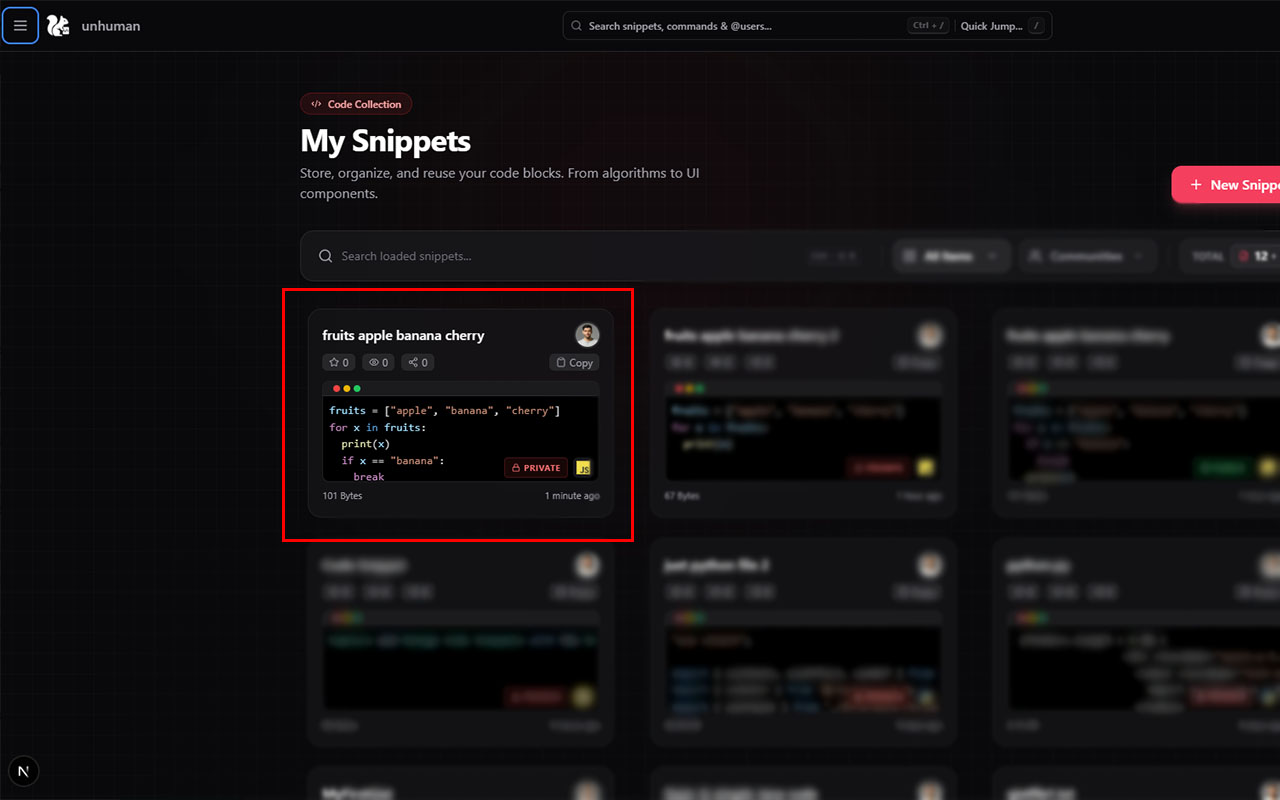
Automatically Cataloged on Your Dashboard
Jump back into your SnippKit dashboard at any time. Your captured snippet is automatically filed under My Snippets with syntax highlighting, line and byte statistics, author attribution, and privacy badges.
Deep-Dive, Edit, Share, or Pull to CLI
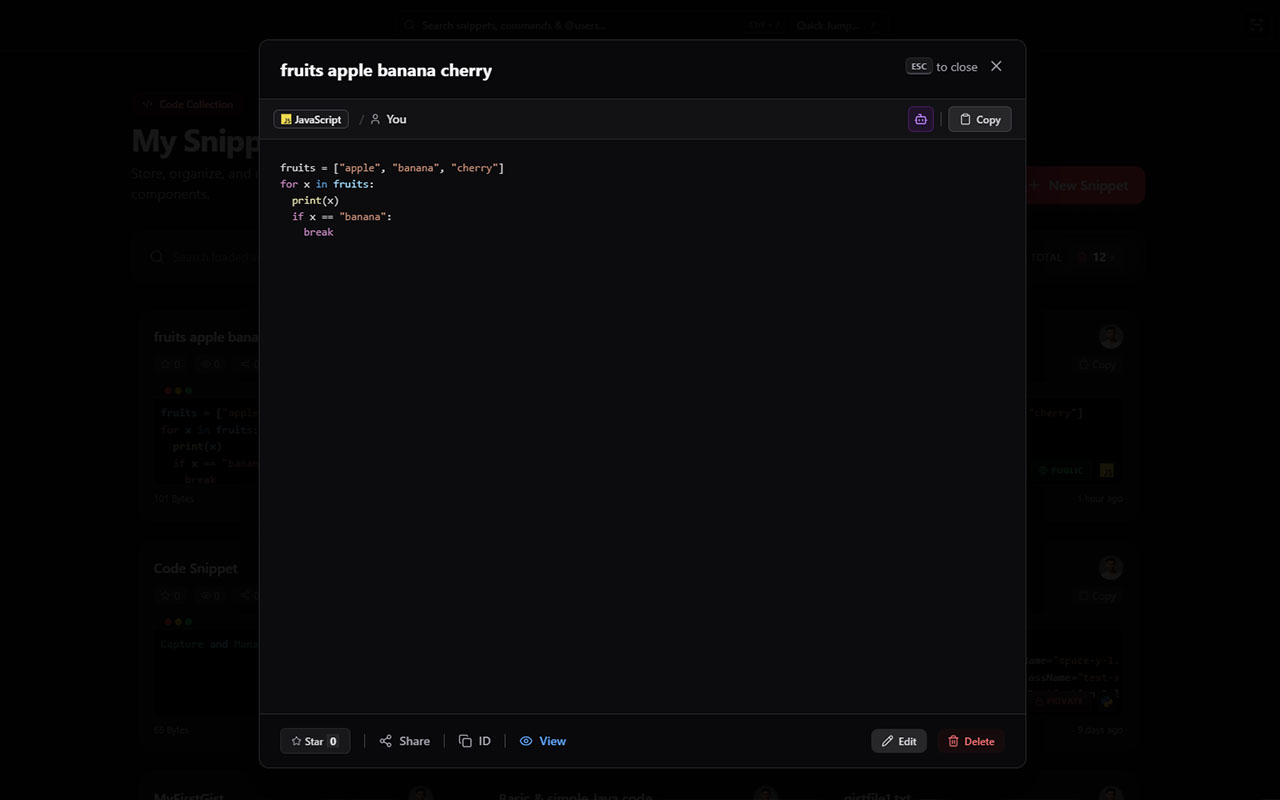
Open your snippet in the full-screen modal or detailed view. You have instant access to copy the code, format it, update tags, generate share links, or pull it directly to your terminal via the SNiX CLI.
Customize Themes, Shortcuts & Tooltips
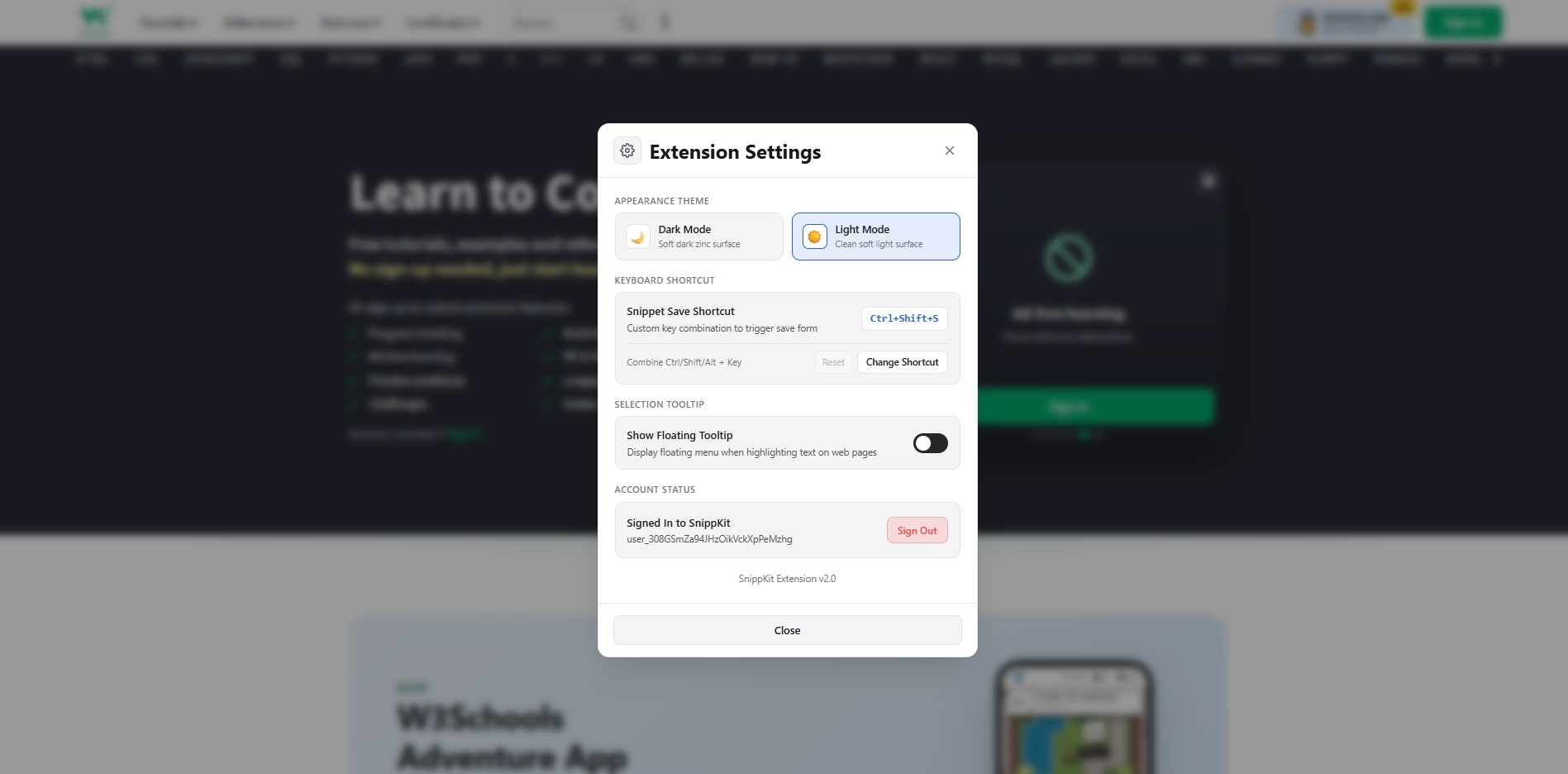
Click Settings in the context menu to open the Extension Settings modal directly on any page. Customize hotkeys, toggle floating highlights, switch themes, or manage your active session seamlessly.
Designed for Developer Productivity
Built with security, speed, and clean categorization at the core.
Custom Slugs
Generate clean, human-readable URLs right inside the browser popup. Ideal for documentation, quick bookmarks, and CLI pulling.
Multi-Format Capture
Save standard snippets, multi-line shell scripts, API JSON payloads, and CLI commands seamlessly with intelligent auto-formatting.
SNiX CLI Synergy
Any snippet saved through Chrome can instantly be pulled into your local terminal or editor with snix pull -s <id>.
Installation & Setup
Follow these simple steps to connect your browser extension to your account.
- 1Install the Extension:
Visit the Chrome Web Store listing and click “Add to Chrome”.
- 2Connect Your Account:
Click the SnippKit extension icon in your browser toolbar, then click “Connect” to instantly link your workspace.
- 3Highlight & Save:
Select any code block on any website, right-click, and select “Save to SnippKit” to store it directly into your cloud repository.